- jeffchen@packagedbox.com
- +86-15767637578
- Language
 English
 Español
 Português
 русский
 Français
 日本語
 Deutsch
 tiếng Việt
 Italiano
 Nederlands
 ภาษาไทย
 Polski
 한국어
 Svenska
 magyar
 Malay
 বাংলা ভাষার
 Dansk
 Suomi
 हिन्दी
 Pilipino
 Türkçe
 Gaeilge
 العربية
 Indonesia
 Norsk
 تمل
 český
 ελληνικά
 український
 Javanese
 فارسی
 தமிழ்
 తెలుగు
 नेपाली
 Burmese
 български
 ລາວ
 Latine
 Қазақша
 Euskal
 Azərbaycan
 Slovenský jazyk
 Македонски
 Lietuvos
 Eesti Keel
 Română
 Slovenski
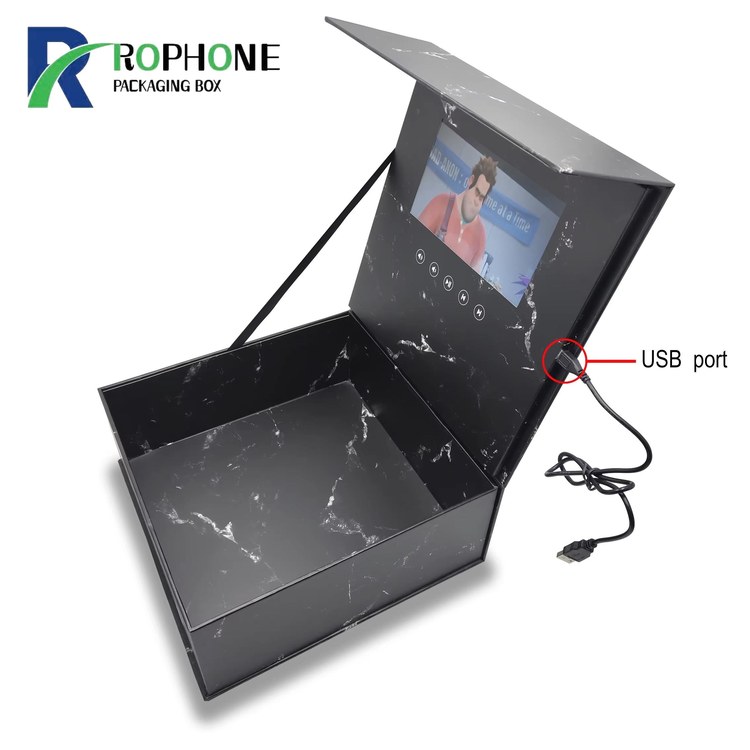
USB Ports and Connections on an LCD Video Brochure Card
The USB port is one of the most practical parts of our LCD video brochure cards. It handles charging, video file updates and connection to a computer, so the module can be powered and reprogrammed without opening the booklet. Understanding what the USB interface does, where it sits and how the cable connects helps you spec the right card for your campaign. This guide explains the USB technology behind our LCD video brochure cards, from charging the module to transferring a new video file.
1. What the USB Port Does on an LCD Video Brochure Card
The USB port on an LCD video brochure card links the internal video module to an outside cable. Through this single interface, the card can receive power, accept a video file from a computer and sometimes exchange data with the playback board. The port is usually set into the edge or lower panel of the booklet, close to the speaker and control buttons, so it is easy to reach without damaging the screen or printed cover.
On a printed video brochure card, the USB connection replaces the need to remove the module for every update. Rophone positions the port so the cable plugs in cleanly and the booklet still closes flat, keeping the LCD video brochure card looking finished from the outside. The interface is matched to the module board used inside the card, so charging and file transfer work together reliably.
2. USB Charging for the Card Module
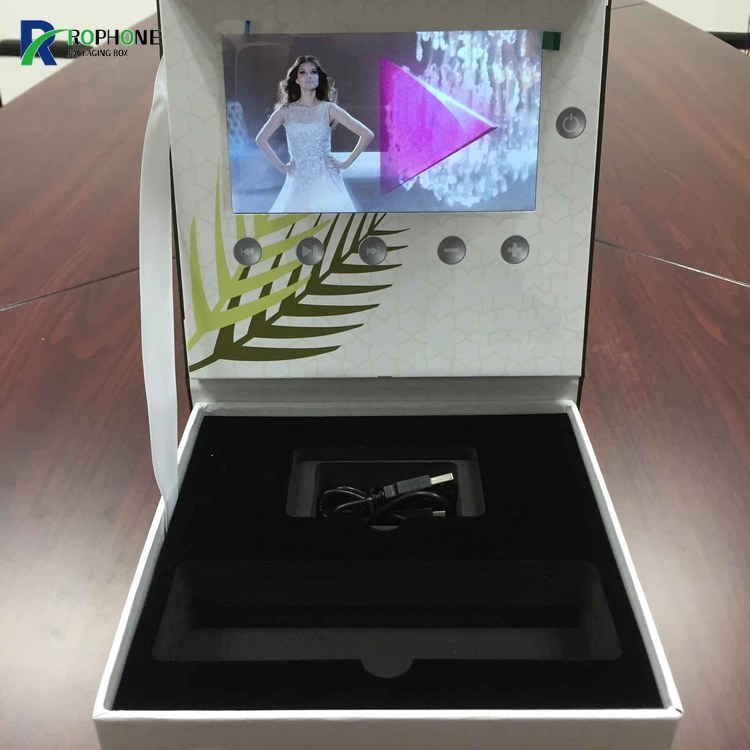
Many LCD video brochure cards use a rechargeable module that tops up through the USB port. Connecting the cable to a standard charger or computer charges the onboard battery, so the card can play its video repeatedly during a mailing, showroom display or sales meeting. The charging current is managed by the module board to protect the battery and playback circuit inside the card.
Rophone tests the charging connection on each video brochure card before packing, checking that the port makes contact and the module powers up correctly. For cards sent by post or handed out at events, a full charge means the LCD video brochure card opens and plays straight away without the recipient needing to plug in first. The USB cable can be supplied in the card pocket or kept as a follow-up accessory.
3. Transferring and Updating the Video File
Besides charging, the USB port is used to load or replace the video file on the LCD video brochure card. When the card connects to a computer, the module appears as a storage device, and the approved video can be copied onto it. This makes it straightforward to update footage for repeat orders, replace a campaign clip or load different videos into cards for different markets.
Rophone loads the approved video onto each card before dispatch and checks playback after the file transfer. Where a card design supports it, the USB interface allows the video to be swapped later without replacing the printed booklet. File format, size and aspect ratio are matched to the screen of the LCD video brochure card during preparation, so the transferred video plays at the intended quality.
4. Port Placement, Cable and Connection Design
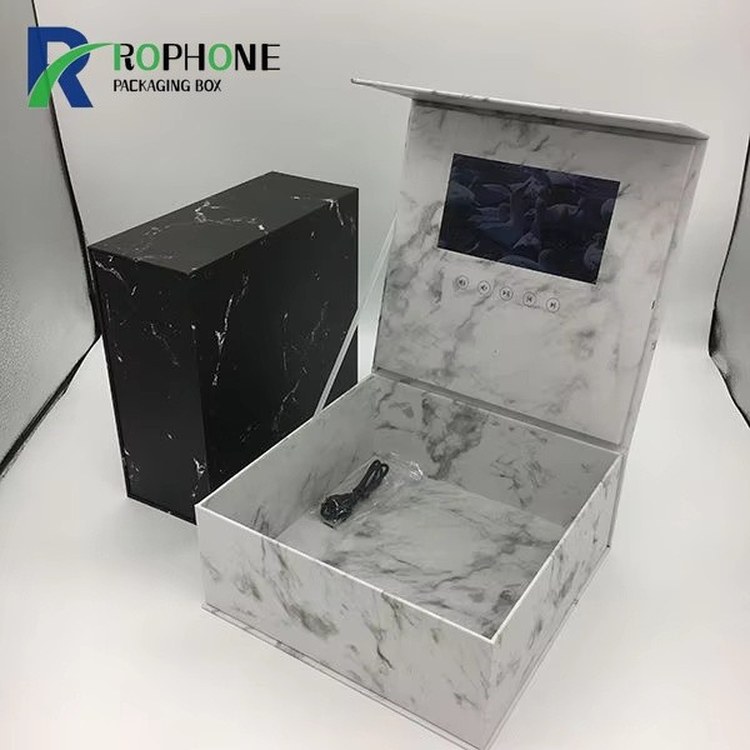
Where the USB port sits affects both usability and the printed design of the video brochure card. It can be placed on the booklet edge, the lower inner panel or a hidden side gap, depending on the screen layout and where the module sits inside. The surrounding paper or board is cut cleanly around the port so the cable seats properly and the cover artwork still looks tidy.
The cable supplied with an LCD video brochure card is a short USB lead matched to the module connector. Rophone aligns the port, cable groove and internal board during assembly so the connection does not pull on the screen or speaker. You can compare booklet layouts and panel arrangements across the full electronic greeting card range when planning where the interface should sit.
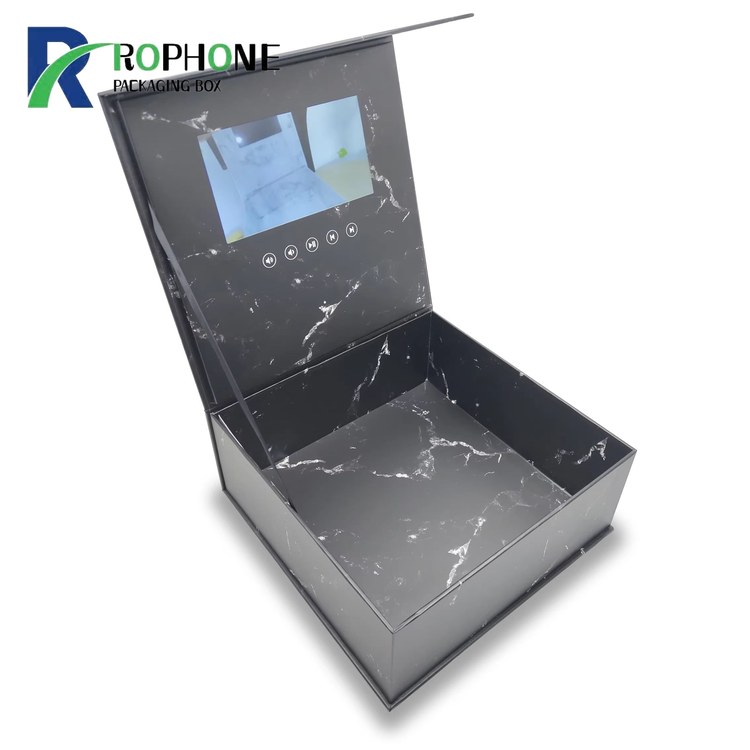
5. USB Operation Alongside the Onboard Module
The USB port works together with the playback board, speaker and screen inside the LCD video brochure card. While charging or transferring, the module keeps the video file stored onboard, so the card continues to open and play from its own memory once the cable is removed. Buttons on the panel control play, pause, volume and replay independent of the USB connection.
This separation means the video brochure card does not need to stay plugged in to display its message. Rophone wires the USB input to the playback board so power, charging and file transfer do not interfere with normal playback. The finished LCD video brochure card operates on its own battery for display, with USB reserved for charging and updates.
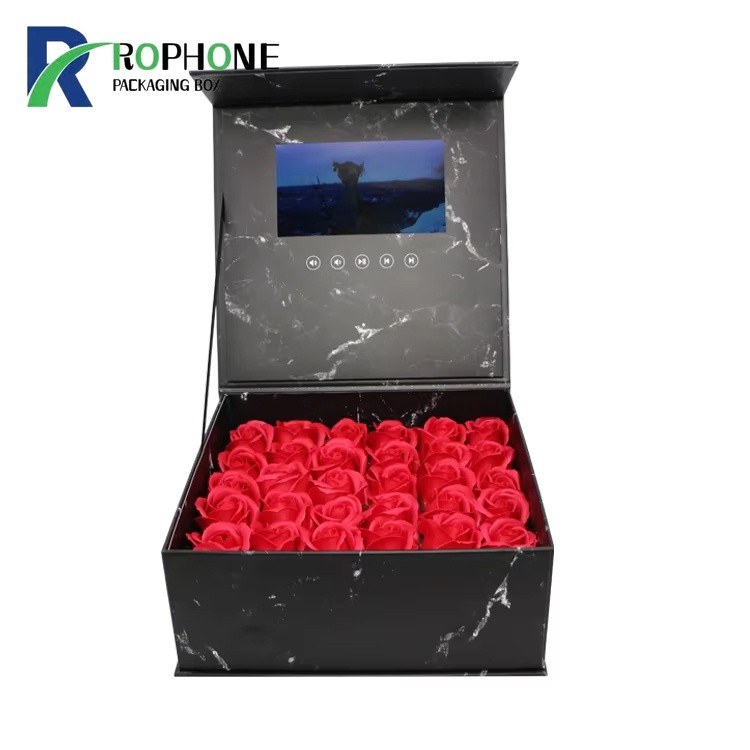
6. USB Interface Support from Rophone
Rophone can advise on the module, port position and cable option for your LCD video brochure card. We match the USB interface to your booklet size, screen and quantity, and test charging and file transfer before the cards leave the workshop. This is part of how each card is customized for your brand, from the printed cover to the internal module.
Send your booklet size, video file and intended use, and our team will recommend the right USB setup for the video brochure card. Rophone prepares, loads and tests each LCD video brochure card so the port, charging and playback work correctly when the piece reaches your customer or event.
Send Inquiry
-
WhatsApp
X
We use cookies to offer you a better browsing experience, analyze site traffic and personalize content. By using this site, you agree to our use of cookies.
Privacy Policy